Unlock items locked by another user
Organization and project admins can unlock items that were locked by another user. However, project admins can only batch unlock items from List View or Single Item View.
Organization Admins only
You need organization admin permissions for this task.
To unlock items locked by an organization admin:
Select the link with your name in the header to open the My Profile window. This button is disabled if you selected ADMIN in the header.
Select the My locked items tab and select Show All Locked Items.
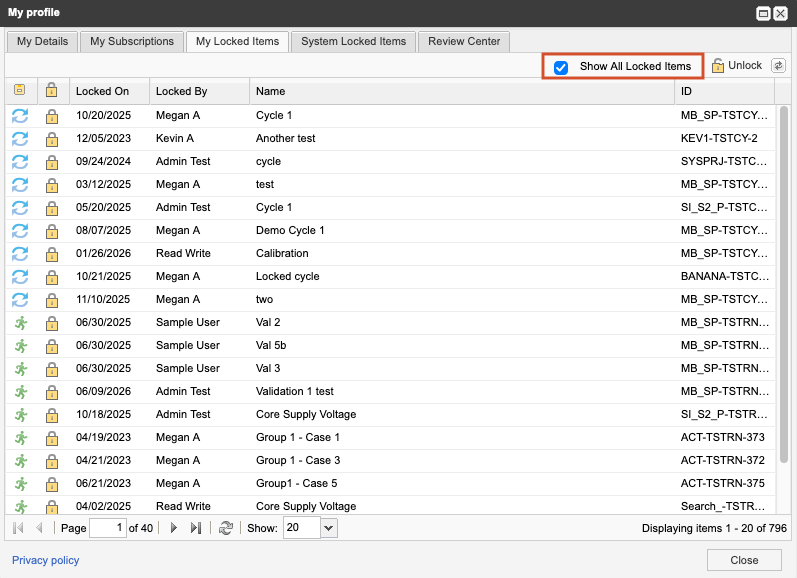
Locate and select the item in the list you want to unlock. then select Unlock.
To unlock items locked by a project or organization admin:
From List View
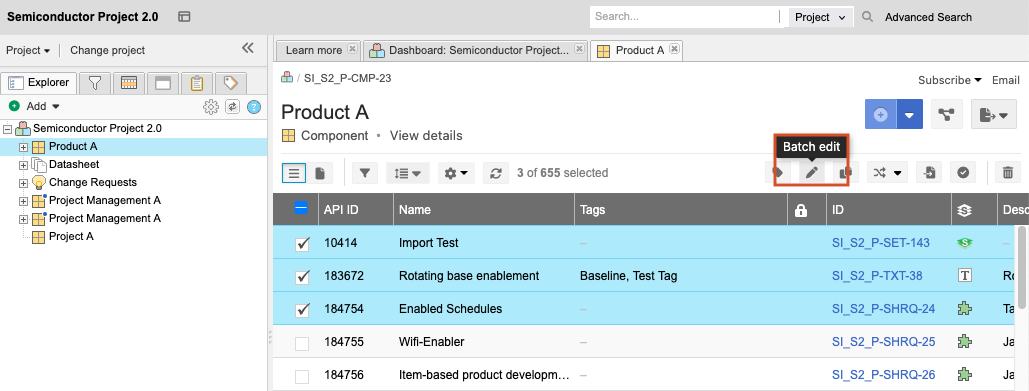
Select the item you want to unlock, then select Batch edit.
In the Batch update window, select Locked Status > Unlock all items, then select Next.
(Optional) Add a comment and notify users.
Select Commit.
From Single Item View
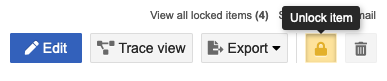
Select the item you want to unlock, then select the Unlock item icon.
Note
If you are an organization or project admin, you can also access the system-locked items tab to unlock system-locked items.