Controlling the Categories feature (organization admin)
The Categories feature allows users to organize and view items in a cross-project hierarchy. It allows users to see how items and components can build a final product.
The Categories feature is disabled by default. As the organization admin, you must enable it for the option to appear in Jama Connect and be available to users.
When this feature is enabled, organization admins can interact with:
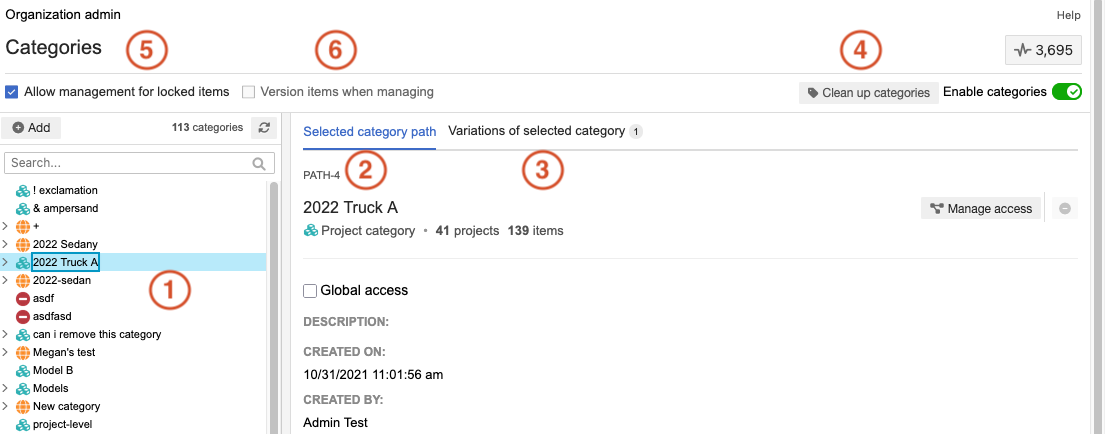
Categories tree
Create a hierarchy that is specific to your company's workflow.
Add, move, copy, and merge categories.
Selected category path option
View category details like description and when it was created.
Remove category.
Variations of selected category option
Edit and delete a category.
View category paths, associated variation path, and category IDs.
Clean up categories option
This option is rarely needed. Under extreme circumstances of large scale concurrent actions, the data available to the UI might need to be refreshed.
Use this option in the following scenarios:
Incorrect category item display — If items are missing from the Category List View but are visible in Single Item View.
Inaccurate category counts — If the counts of applied or unapplied categories are incorrect or don’t match your expectations.
Inaccurate categories column — If the Version Applied column in the historical categories view shows “null” instead of a number.
Allow management for locked items option
Add or remove categories from user-locked or system-locked items.
Version items when managing option
Creates a new item version when you add or remove categories, similar to editing an item. When enabled, you can’t manage categories in a review.
Note
You can enable only one option at a time. Organization admins must choose whether to manage categories on locked items or create new item versions.
When enabled, users with read/write permissions can interact with:
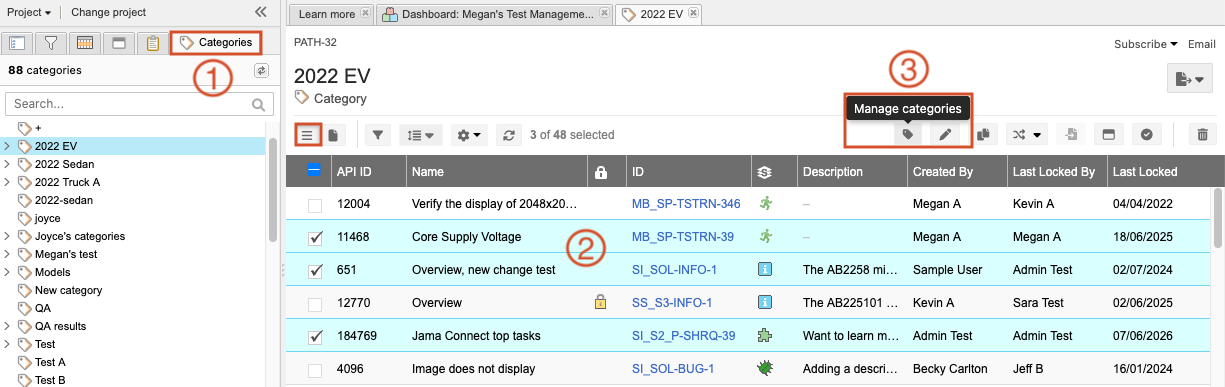
Categories tab in the Explorer Tree
Categories table in Single Item View
Manage categories button in Single Item View and List View