Configure Outgoing Email (SMTP) settings
Before configuring SMTP, verify that your email server supports SMTP. Your server must support SMTP to enable reply-to emails in the stream.
For more information, see Authenticate an IMAP, POP, or SMTP connection using OAuth.
To configure SMTP:
Select System Properties > Outgoing Email (SMTP).
Select Edit, then select Is SMTP enabled.
Configure the following settings:
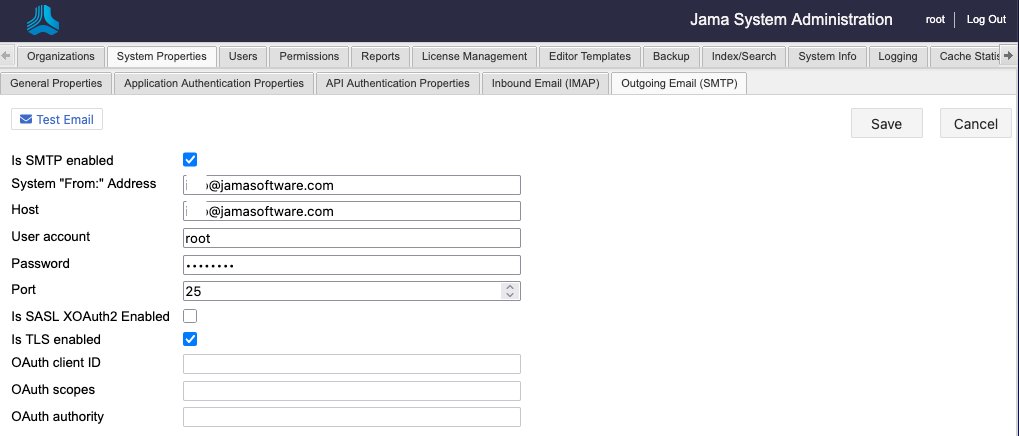
System "From:" Address
Enter the name for the "from" user account.
Collaboration "From:" Address
Enter the name of the mail folder to read collaboration replies from.
Host
Enter the SMTP server URL.
User account
Enter a user account for someone with access to the folder where SMTP emails are saved.
Password
Enter the password for the user account or the OAuth secret.
Port
The port for SMTP connection. Standard ports are Non-SSL: 25, SSL:587.
Is SASL XOAuth2 Enabled
Select to enable OAuth authentication and token-based authorization for Microsoft based SMTP connections.
Is TLS Enabled
Select to enable TLS SMTP connections.
OAuth Client ID
Enter the client ID (Microsoft AAD Application ID).
OAuth scopes
Enter the resource URLs defining the token authorization request.
OAuth authority
Enter the URL of the authenticating authority or security token service.
Microsoft security token service example: https://login.microsoftonline.com/{microsoft_tenant_id}
Select Save.
Your changes are saved.
You might need to clear your cache for these setting to take immediate effect. For more information, see Clear cache.
OAuth settings only work with Microsoft SMTP services.