Customize Assistant prompts
An organization admin can replace an individual bundled Assistant prompt with an organization-specific prompt override.
Use prompt overrides to tune model behavior after the integration works. A prompt change can’t fix connectivity, adapter mapping, turn completion, or unsupported tool behavior.
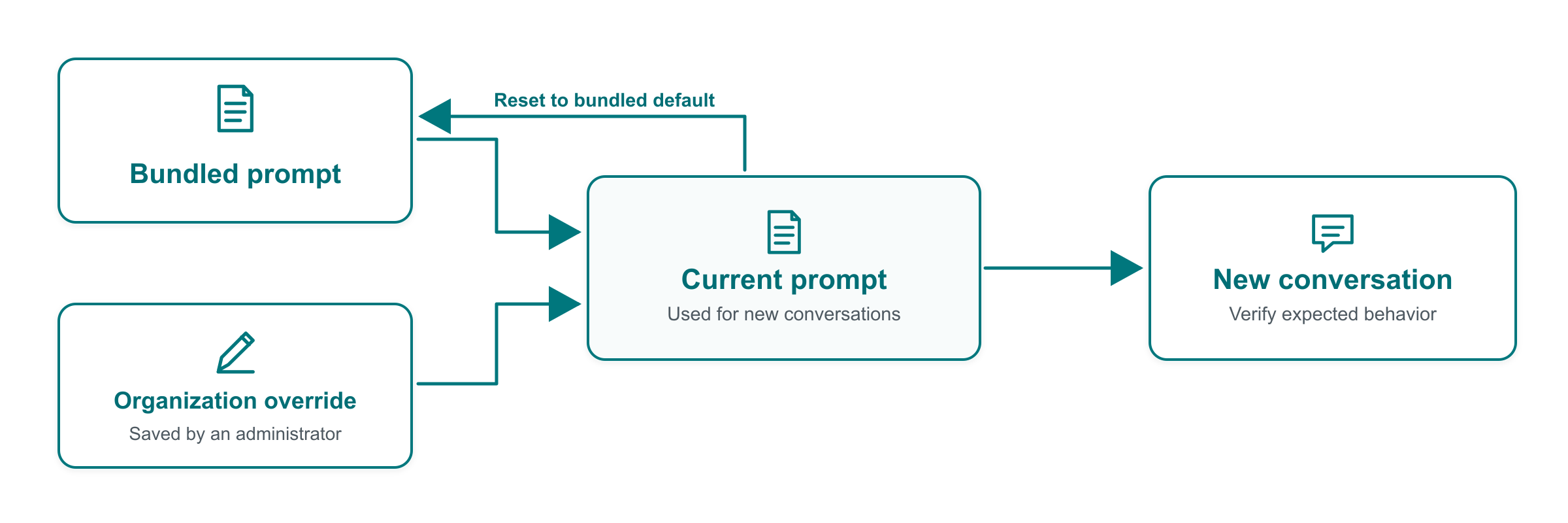
The Current prompt is either the bundled prompt or the organization's saved override.
To save a prompt override:
From the Jama Connect header, select Admin > Organization > Jama Intelligence Assistant.
In the "Configured prompts" section, select the prompt resource to review.
Compare Current prompt with Bundled default prompt.
Enter the override in Current prompt.
Select Save changes.
Start a new Assistant conversation.
Verify the intended behavior in the new conversation.
The override must be nonblank and no larger than 152,805 UTF-8 bytes.
To reset a prompt:
In the "Configured prompts" section, select Configured prompts > Reset to bundled default.
Confirm the reset.
Start a new Assistant conversation.
Verify that the bundled behavior is restored.