Manage specification tiles
You can customize Live Trace Explorer diagrams by selecting which specification tiles to include and the order in which they are displayed.
To manage specification tiles:
From the top navigation, select Actions > Configuration settings.
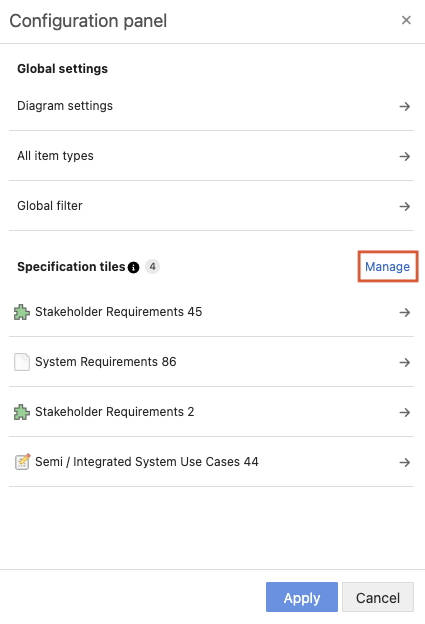
The Configuration panel opens to the left of the diagram and lists all specification tiles in the diagram. By default, all item types are included.
In the Specification Tiles section, select Manage.
In the Available column, select the item types you want to include, then use the arrows to move them to the Selected column.
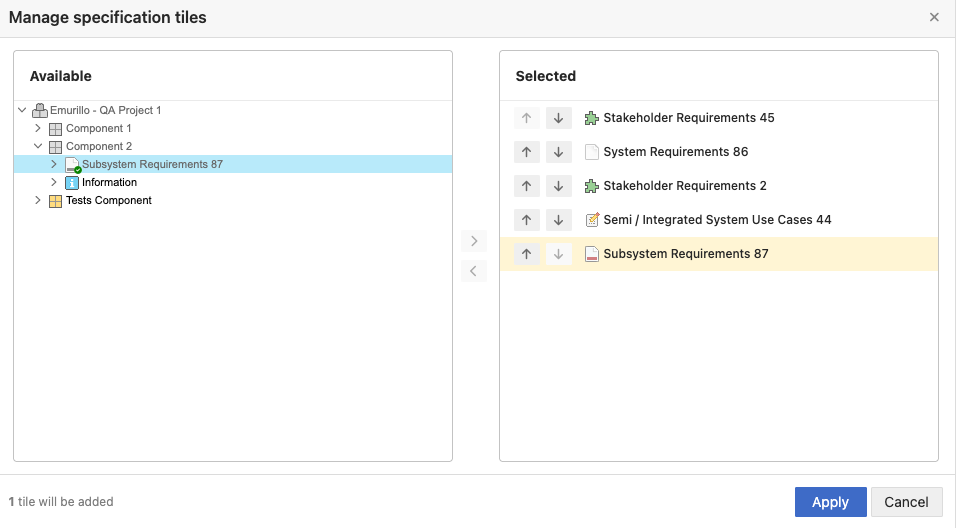
The selected item types are highlighted in yellow until you save your changes.
To change the order of the tiles, use the arrows to move the selected tiles up or down.
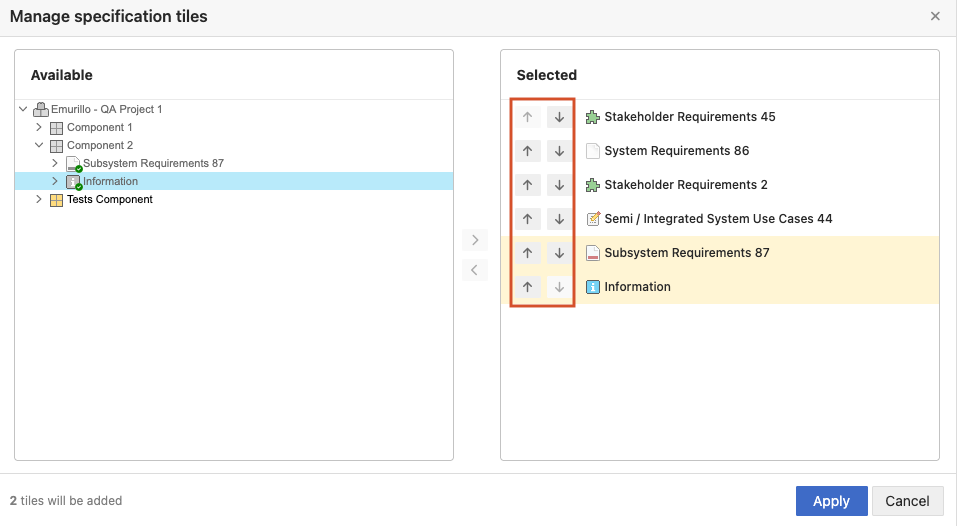
Review the number of item types that will be applied and the number of items that will be impacted.
Select Apply to save your changes.
The diagram is refreshed and new configuration settings are applied.