Modify the entire diagram
When your project doesn't require that you track an item type or if you have a relationship rule to exclude, you can turn it off for the entire diagram.
Scenario for modifying the diagram globally
If a specific item type or relationship rule isn’t needed for the Trace Score, you can turn it off for the whole diagram rather than manually turn off each item type or relationship rule in every tile.
If a specific category is needed for the entire diagram, you can apply a global filter to the diagram.
Important considerations
All item types and relationship rules are turned on by default.
When an item type is turned off, all relationship rules associated with that item type are automatically turned off.
Selections and exclusions are made to the entire diagram from Global settings in the Configuration panel. To make selections and exclusions to an individual tile, see Modify a tile in the diagram.
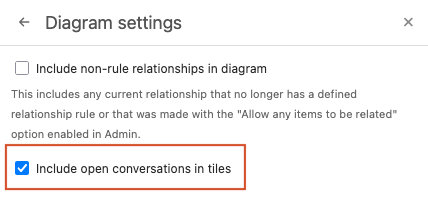
Open conversations represent the total number of comments from all items in that tile. By default, this setting is enabled.
You can set up to 10 conditions in a global filter.
To modify the entire diagram:
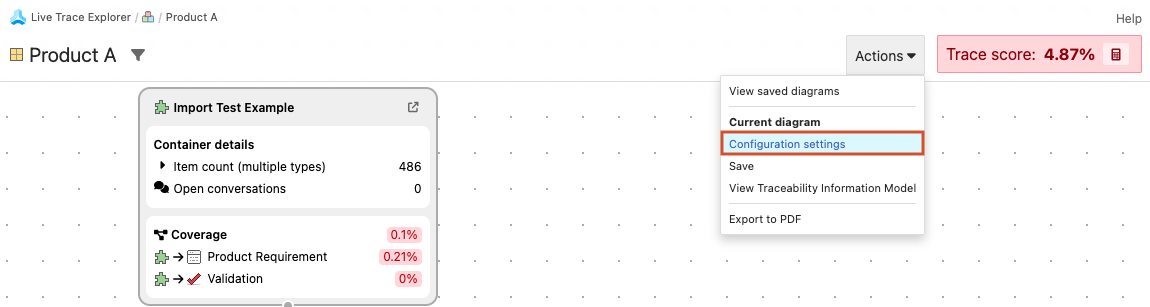
From the top navigation, select the Actions menu, then select Configuration settings.
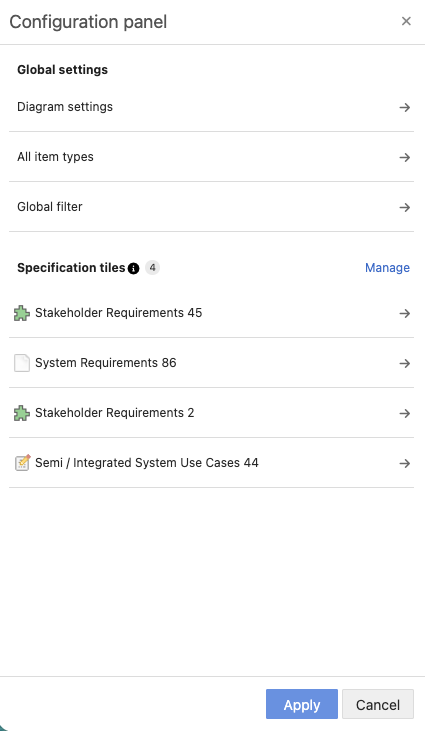
The Configuration panel opens to the left of the diagram.
To turn off an item type:
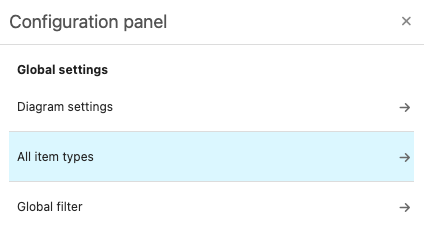
In the Global settings section, select All item types.
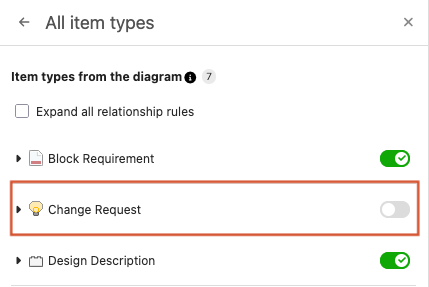
The panel displays the available item types. All item types are enabled by default (toggle switch is green with a checkmark).
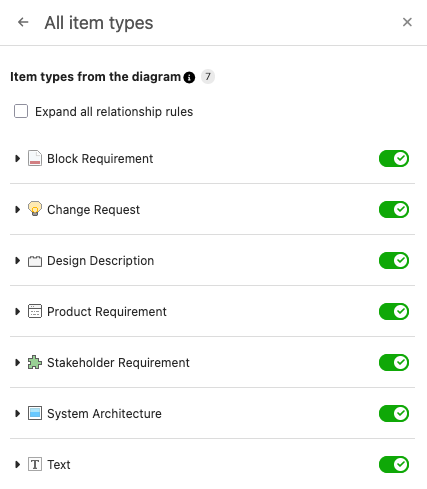
Select the item type you want to turn off, then select its green toggle switch to turn it off. The toggle switch is gray when the item type is turned off.
Select Apply.
A confirmation message notifies you that the diagram was updated.
(Optional) To include the item type again, select its gray toggle switch to turn on the item. The switch appears green with a checkmark to indicate that the item type is again included in the entire diagram.
To exclude open conversations in tiles:
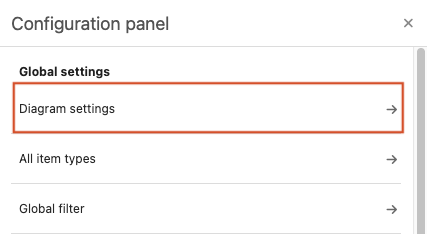
In the Global settings section, select Diagram settings.
Select Include open conversations in tiles.
Select Apply.
A confirmation message notifies you that the diagram was updated.
To include non-rule relationships:
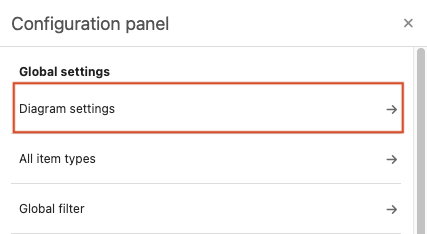
In the Global settings section, select Diagram settings.
Select Include non-rule relationships in diagram.
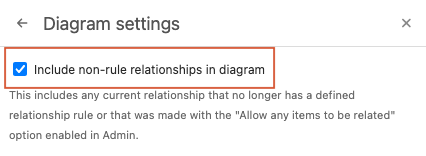
Select Apply.
A confirmation message notifies you that the diagram was updated.
To turn off relationship rules:
In the Global settings section, select All item types.
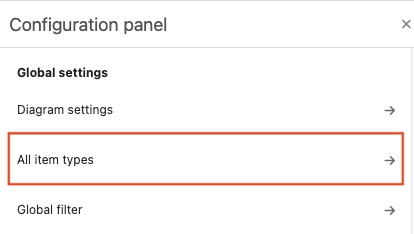
Select the item type with the relationship rule you want to turn off, then select the arrow or select Expand all relationship rules to expand the list.
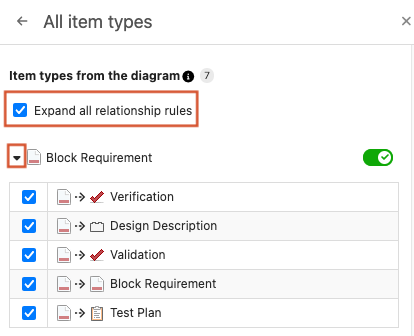
Select the blue checkbox next to the relationship rule you want to turn off (for example, Validation). The checkbox is unchecked and gray when the relationship is turned off.
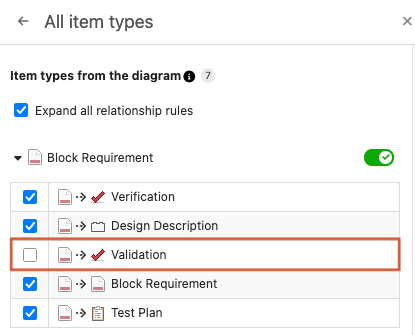
Select Apply.
To set a global filter:
Tip
You can also access the Global filter from Configuration panel.
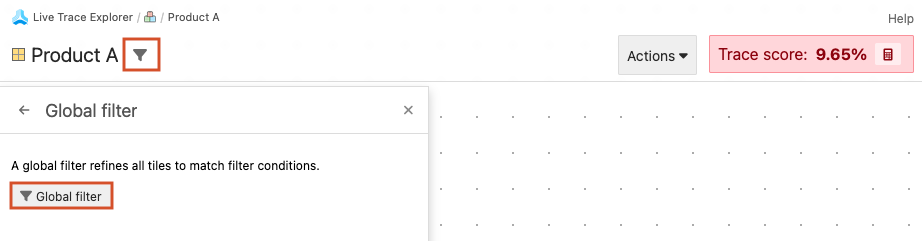
From the top navigation, select Global filter, then select the Global filter button.
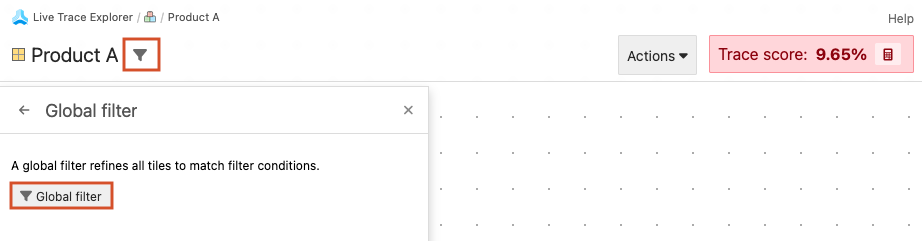
In the window that opens, select filter options from existing categories in the project, then select Set Global filter.
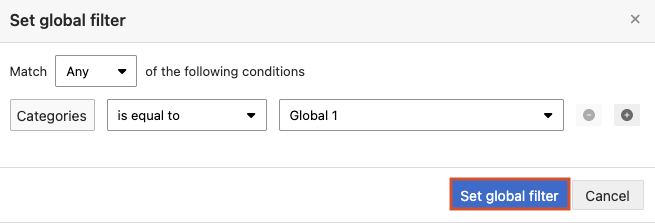
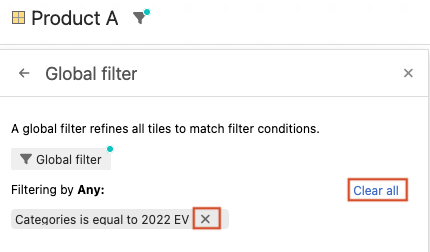
A teal dot on the Global filter button indicates that a filter has been set.

Select Apply.
A confirmation message notifies you that the diagram was updated.
To remove a global filter:
From the top navigation, select Global filter (filter icon), then select the Global filter button.
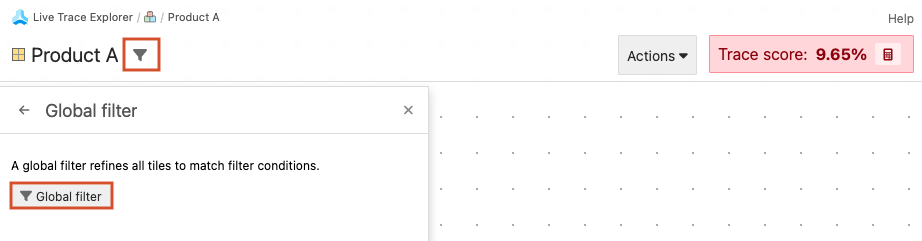
Next to the category label, select X to remove a single condition or select Clear all.
Select Apply.
A confirmation message notifies you that the diagram was updated.
To update a global filter:
From the top navigation, select Global filter (filter icon), then select the Global filter button.
From the Global filter panel, select the filter options you want to change, then select Update.
Select Apply.
A confirmation message notifies you that the changes were applied to the diagram.
To include the relationship again, select the gray checkbox to turn on the relationship. The checkbox appears blue with a checkmark to indicate that the relationship is again included in the entire diagram.