Add a branch (Cloud only)
Organization and project admins can add a branch to a project. Once added, all users can view and work in the branch.
Organization and Project Admins only
You need organization or project admin permissions for this task.
Important considerations
Only one branch per project can be added.
A project with existing cross-project associations can’t be branched.
Once the branch is added, it is visible to all users.
After you add a branch, you can’t move items from the main project or its branches to another project. You can still reorder items within a project, and those changes appear as "moved" in the comparison view.
To add a branch:
Select PROJECTS, then open the project where you want to add the branch.
From the Branch drop-down menu, select Add branch.
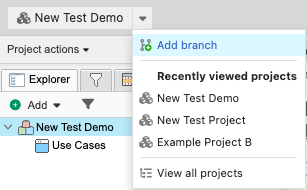
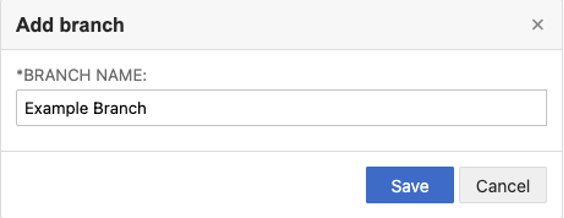
In the window that opens, enter a name for the new branch, then select Save.
In the window, select View branch to navigate to the new branch.

The page is refreshed and the new branch is now available.