Add a group as an Approval review participant
Instead of adding each user individually as review participants, you can add a group. One group member can claim the review and sign off for the group.
You have two options:
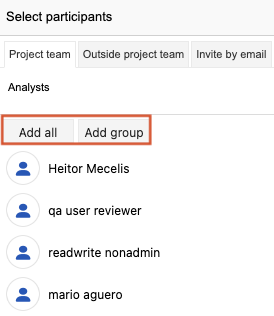
Add all — Adds each group member as an individual participant. Each member provides feedback and signs off independently.
Add group — Adds the group as a single participant. One group member claims the review and signs off for the group.
Important considerations
When a group member opens the review, they select Claim. The Participants page shows who claimed the review.
If the claiming member is unavailable, a review moderator can select Revoke claim so that another group member can claim it.
The claim and approval are recorded in the review’s audit trail. In Stats > Review activity, you can see which group member claimed the review.
When you add a group, the signer role is fixed and can’t be changed. When you add an individual participant, you can change the signer role to any group that includes that user.
A group is grayed out when it’s already assigned as the signer role.
To add a group as a review participant:
Create a review and follow the prompts in the wizard:
Definition — Name the review, set a deadline, and select the items to review.
Settings — Configure the review settings.
Participants — Select the group type:
Add all — Add each group member as an individual participant, then configure the Signer role and Review role for each participant.
Add group — Add the group as the participant.
Note
Note: At least one approver is required before you start an approval review.
Invitation — Complete and send the invitation email.
Select Initiate review.
A message confirms that the review was sent to all selected participants. All members in the group receive a review notification.