Revert a merge (Cloud only)
If you pulled in changes and accidentally overwrote something important, you can return your target branch to its previous state.
Organization and Project Admins only
You need organization or project admin permissions for this task.
Important considerations
All work that was done in the target project since the merge is reverted. For example, any item, relationship, versioned/non-versioned change made from the time the merge completed is reverted.
Items deleted using the reversion process can be restored from the Project Activity History.
To revert a merge:
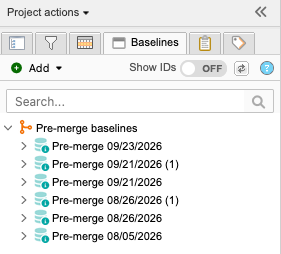
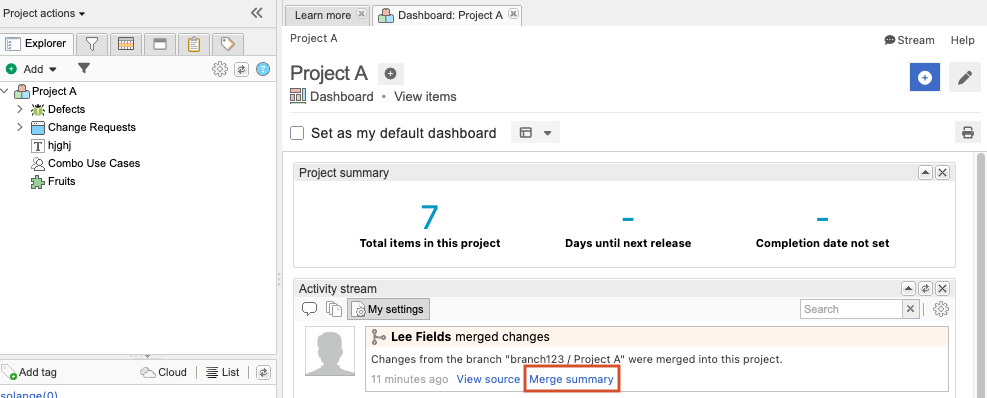
Select PROJECTS, then navigate to the pre-merged baseline using one of these methods:
In the Explorer Tree, select the Baselines tab with the pre-merged baseline, then select the baseline you want to revert.
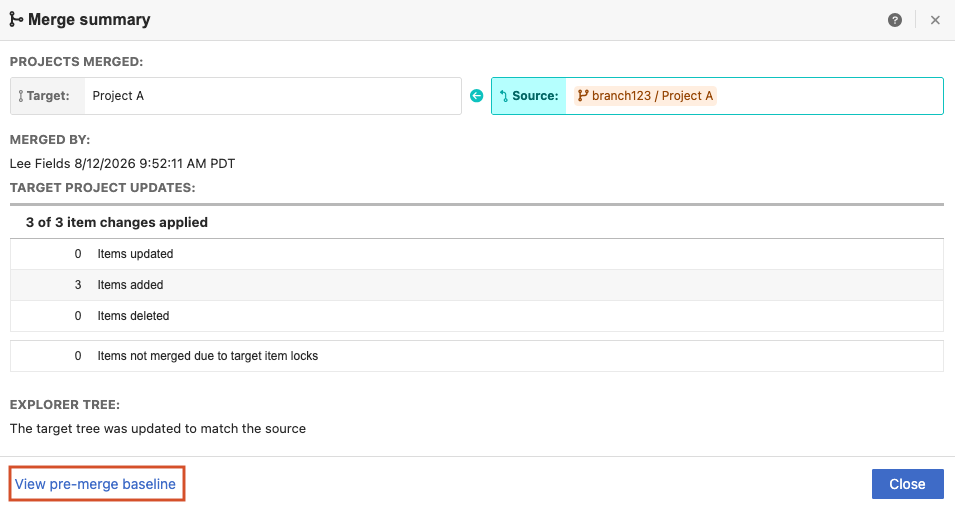
In the Activity Stream, select Merge summary > View pre-merge baseline.
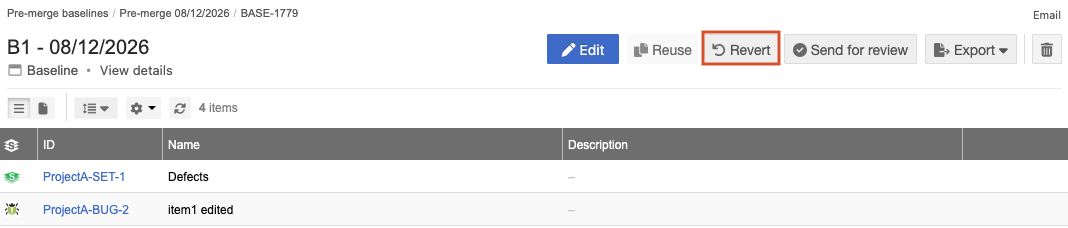
In the Baselines header, select Revert.
In the confirmation window, select I understand this action can’t be undone, then select Revert.
Depending on the number of updates being incorporated, this process can take several minutes.
In the window that opens, select View summary.
The Project Revision Summary appears.